Unbiased headlines. Facts, not spin.
Every story is an unbiased news briefing written from 110+ sources across the spectrum — sources linked so you can verify it yourself.
 tech
Notable (5/10)
June 18, 2026 at 10:12 AM
tech
Notable (5/10)
June 18, 2026 at 10:12 AM
Google Is Defaulting Gemini AI Into Docs. Here Is How to Turn It Off.
What Google Did
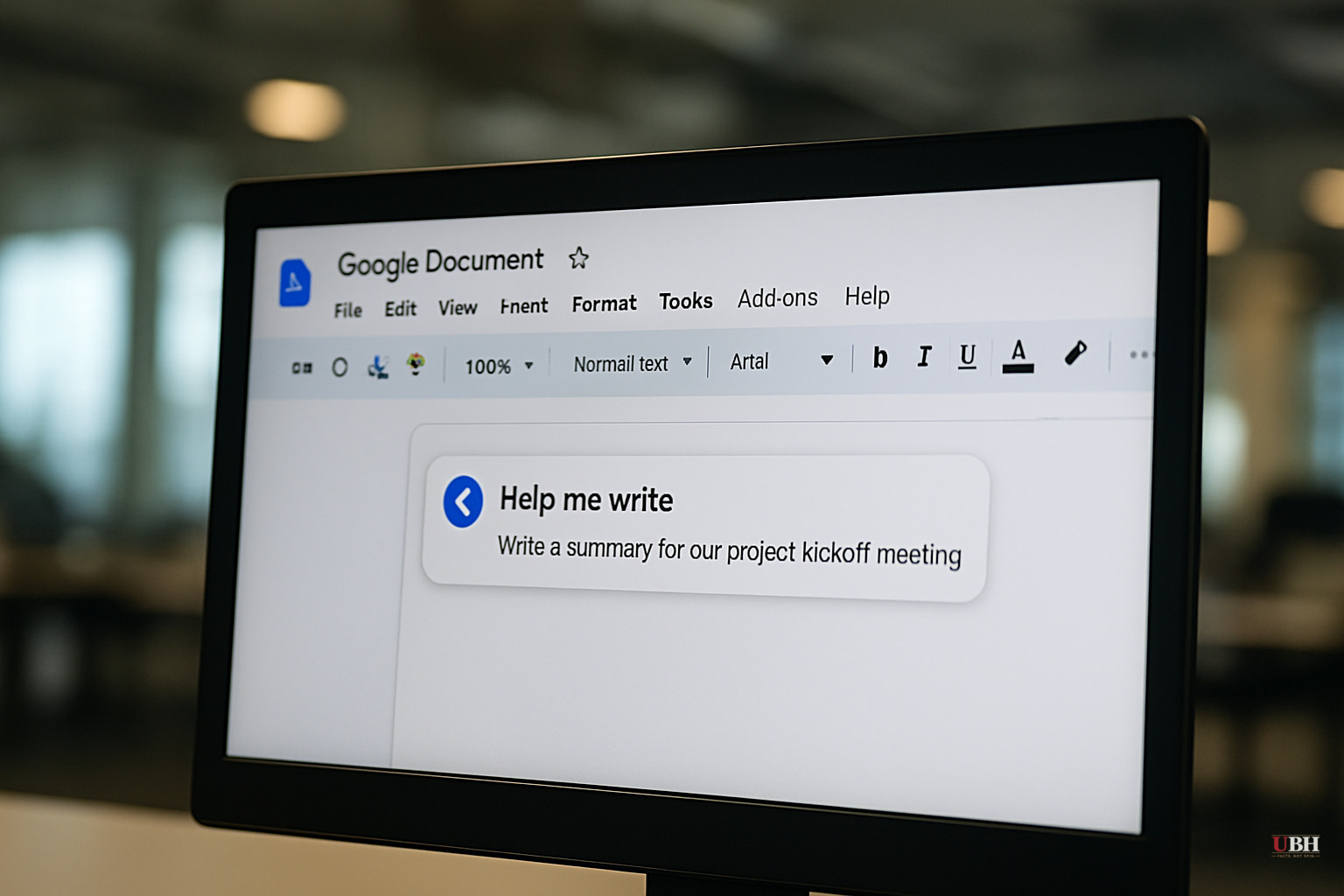
At some point in 2026, Google made Gemini a default presence inside Google Docs. Open a document and you're greeted with a text box asking you to write with AI. There is no prominent dismiss button. Per TechCrunch reporter Amanda Silberling, who documented this on June 17, 2026, finding the off switch takes actual effort.
This is a product design choice, not an accident. Google has a financial incentive to drive Gemini adoption, and defaulting features to "on" maximizes usage numbers whether users want the feature or not.
The Quick Fix for the Bottom Bar
To kill the Gemini box at the bottom of your screen, click Gemini in the top menu bar, select Bottom bar preferences from the drop-down, and toggle it off.
Silberling notes she initially missed this entirely because she was too frustrated to see it. She tried asking Gemini itself how to remove Gemini. The AI directed her to click an X icon that only closed the conversation, not the feature. Whether that's bad UX design or something more deliberately friction-heavy remains unclear.
The Nuclear Option: Disable It Across All of Workspace
For users who don't want to play whack-a-mole with individual AI features, there's a broader setting buried in Gmail.
1. Go to your Gmail inbox.
2. Click the gear icon, then See all settings.
3. Scroll roughly halfway down to find Google Workspace smart features.
4. Click Manage Workspace smart feature settings.
5. Toggle off the first option to disable AI-driven features like the Gemini pop-ups in Docs.
A second toggle covers other smart features, such as Gmail automatically creating calendar events from flight confirmation emails. That one is separate; turn it off only if it bothers you.
The Legitimate Concern Here
Some users actually want Gemini integrated this way. Google's position is straightforward: AI assistance can speed up writing, summarization, and formatting, and surfacing it proactively helps users who wouldn't have found it otherwise. The feature isn't broken. For a lot of people, it probably works fine.
That defense is real. The problem is what it asks of everyone who disagrees: navigate an unintuitive settings maze across two separate Google products (Docs and Gmail) to restore the workspace they had before. Opt-out defaults for features this visible place the friction on the user, not the company. That's a deliberate design tradeoff, not an oversight.
This Reflects a Broader Pattern
Google is not alone in this. Microsoft embedded Copilot into Office in much the same way. Meta has made its AI assistant hard to avoid inside WhatsApp and Instagram. The industry pattern is consistent: push AI defaults out broadly, collect the usage metrics, and make removal non-obvious enough that most people won't bother.
There's no regulatory requirement that software companies offer conspicuous opt-out controls for AI features. The Federal Trade Commission has made noise about dark patterns in app design generally, but no specific enforcement action targeting AI-feature defaults in productivity software has been announced as of June 18, 2026.
What to Actually Do Right Now
If you work in Google Docs regularly, the Gmail-based toggle is the cleaner solution. Disabling individual features one by one will likely become a recurring chore as Google continues rolling out new Gemini integrations. The Workspace-wide setting is one flip and done, at least until Google adds the next feature with its own separate control.
Google has not publicly stated whether future Gemini features added to Docs will respect the existing Workspace smart features toggle, or whether each new addition will require its own opt-out. Until that's clarified, assume you may need to revisit these settings again.
Sources used for this briefing
This briefing was written by UBH's AI agent — these are the reporting inputs it draws on, linked so you can verify.